> For the complete documentation index, see [llms.txt](https://docs.vespr.xyz/vespr/llms.txt). Markdown versions of documentation pages are available by appending `.md` to page URLs; this page is available as [Markdown](https://docs.vespr.xyz/vespr/user-guide/getting-started/connect-a-hardware-wallet/ledger.md).
# Ledger
Connect a Ledger to VESPR over Bluetooth or USB on iOS, Android and the browser extension, sign Cardano transactions on the device, and fix common connection errors.
VESPR works with Ledger hardware wallets on iOS, Android and the browser extension. Your Ledger keeps the private keys. VESPR asks it to sign, and you confirm every transaction on the Ledger's screen.
{% hint style="danger" %}
**Never type your Ledger's 24-word recovery phrase into VESPR or any other app.** Connecting a Ledger never asks for it.
{% endhint %}
## Supported devices and connections
| | iOS | Android | Browser extension |
| ------------------------------------- | -------------- | ---------------- | ----------------- |
| **Connection** | Bluetooth only | Bluetooth or USB | USB or Bluetooth |
| **Ledger Nano X, Stax, Flex** | Yes | Yes | Yes |
| **Ledger Nano S Plus** (no Bluetooth) | No | USB | USB |
iPhones can't reach a Ledger over USB, so iOS uses Bluetooth only and needs a Ledger with Bluetooth.
## Before you start
1. **Install the Cardano app on your Ledger.** Open **Ledger Wallet** (formerly Ledger Live) on your computer or phone, go to **My Ledger**, and install the **Cardano** app. If it's already installed, update it to the latest version there.
2. **Unlock your Ledger** with its PIN.
3. **Open the Cardano app** on the Ledger and keep it open while you use VESPR. VESPR can't read your account or sign while the Ledger is locked or on another app.
4. **Update VESPR** to the latest version. The browser extension needs its latest version for Ledger.
## Connect your Ledger
{% tabs %}
{% tab title="iOS" %}
iOS connects to Ledger over **Bluetooth**.
1. Turn on Bluetooth on your iPhone and on your Ledger. Unlock the Ledger and open the **Cardano** app.
2. In VESPR, tap **Connect hardware wallet** (on the welcome screen, or under **New Wallets** in your wallet list), then **Connect Ledger**.
3. On **Connect Ledger to the VESPR App**, tap **Connect your Ledger device**. If iOS asks whether VESPR may use Bluetooth, allow it.
Tap Connect your Ledger device.
4. VESPR looks for Ledger devices nearby. Select your Ledger from the list.
5. The first time, your iPhone and the Ledger may ask you to confirm a Bluetooth pairing code. Check that the codes match and confirm on both. Then follow the instructions on your Ledger.
6. When you see **Device Connected!**, tap **Continue**.
{% endtab %}
{% tab title="Android" %}
Android connects to Ledger over **Bluetooth** or **USB**.
1. Unlock your Ledger and open the **Cardano** app.
2. In VESPR, tap **Connect hardware wallet** (on the welcome screen, or under **New Wallets** in your wallet list), then **Connect Ledger**.
3. On **Choose Connection Method**, tap **Connect with Bluetooth** or **Connect with USB**.
* **Bluetooth:** turn Bluetooth on, on both devices. Tap **Connect your Ledger device** and allow the Bluetooth (Nearby devices) permission when Android asks.
* **USB:** connect the Ledger to your phone with a USB cable, then tap **Connect your Ledger device**. If Android asks whether VESPR may use the USB device, allow it.
4. Select your Ledger from the list of detected devices.
5. Follow the instructions on your Ledger. Over Bluetooth, the first pairing may ask you to confirm a pairing code on both devices.
6. When you see **Device Connected!**, tap **Continue**.
{% endtab %}
{% tab title="Browser extension" %}
The browser extension connects to Ledger over **USB** or **Bluetooth**. Use Chrome or Brave on your computer.
{% hint style="info" %}
**Brave:** Bluetooth is turned off by default. To use it, open `brave://flags/#brave-web-bluetooth-api`, set it to **Enabled** and restart Brave. USB works without this.
{% endhint %}
1. Unlock your Ledger and open the **Cardano** app. For USB, connect it to your computer with a cable.
2. In VESPR, click **Connect hardware wallet** (on the welcome screen, or under **New Wallets** in your wallet list).
3. A separate **VESPR window** opens, and the extension shows **Continue in the VESPR window**. Carry on in the new window.
4. Click **Connect Ledger**, then **Connect with USB** or **Connect with Bluetooth**.
5. Click **Connect your Ledger device**. The browser shows its own device list: select your Ledger and click **Connect** (USB) or **Pair** (Bluetooth).
6. Follow the instructions on your Ledger.
7. When you see **Device Connected!**, click **Continue**. The window closes and VESPR restarts with your Ledger wallet selected.
If VESPR opens as a small **Pop Up** from the toolbar (for example in Arc) instead of the side panel, the Pop Up closes when the VESPR window opens. Finish pairing in the window, then open VESPR again.
{% endtab %}
{% endtabs %}
### Which account VESPR adds
VESPR adds the **first Cardano account** on your Ledger (account #0) as a new wallet, named after your Ledger. If you connect the same Ledger again, VESPR selects the wallet you already have instead of adding a copy.
## Sign with your Ledger
When you send from your Ledger wallet or approve a dApp request, VESPR asks the Ledger to sign:
1. Unlock the Ledger and open the **Cardano** app.
2. Review the request in VESPR and continue.
3. Connect to the Ledger:
* **iOS:** VESPR looks for your Ledger over Bluetooth.
* **Android and the browser extension:** choose **Connect with Bluetooth** or **Connect with USB**. VESPR asks every time, because the same Ledger can be on either.
4. Select your Ledger. On **Continue on Ledger**, check the details on the Ledger's screen and approve them there.
5. VESPR adds the signature and submits the transaction. When a send goes through, the send screen shows **Transaction Submitted** with the transaction hash.
**In the browser extension,** sends you start in VESPR are signed in the separate VESPR window, which closes when you're done. Click **Cancel** in VESPR to stop waiting and close it. dApp requests open in their own VESPR window, where you review and sign them.
## Troubleshooting
When something goes wrong, VESPR shows one of these messages. Most of them have **Try again**, which repeats the step, and a **Help** link to this page.
| VESPR shows | What to do |
| -------------------------------------------------------------------------------------------- | ----------------------------------------------------------------------------------------------------------------------------------------------------------------------------------------------------------------------------------------------------- |
| **0 Ledger devices detected**: We couldn't find any Ledger devices nearby. | Unlock the Ledger, open the Cardano app, then tap **Try again**. For Bluetooth, check it's on, on both devices, and keep the Ledger close. For USB, try another cable or port. In the browser extension, also see [below](#in-the-browser-extension). |
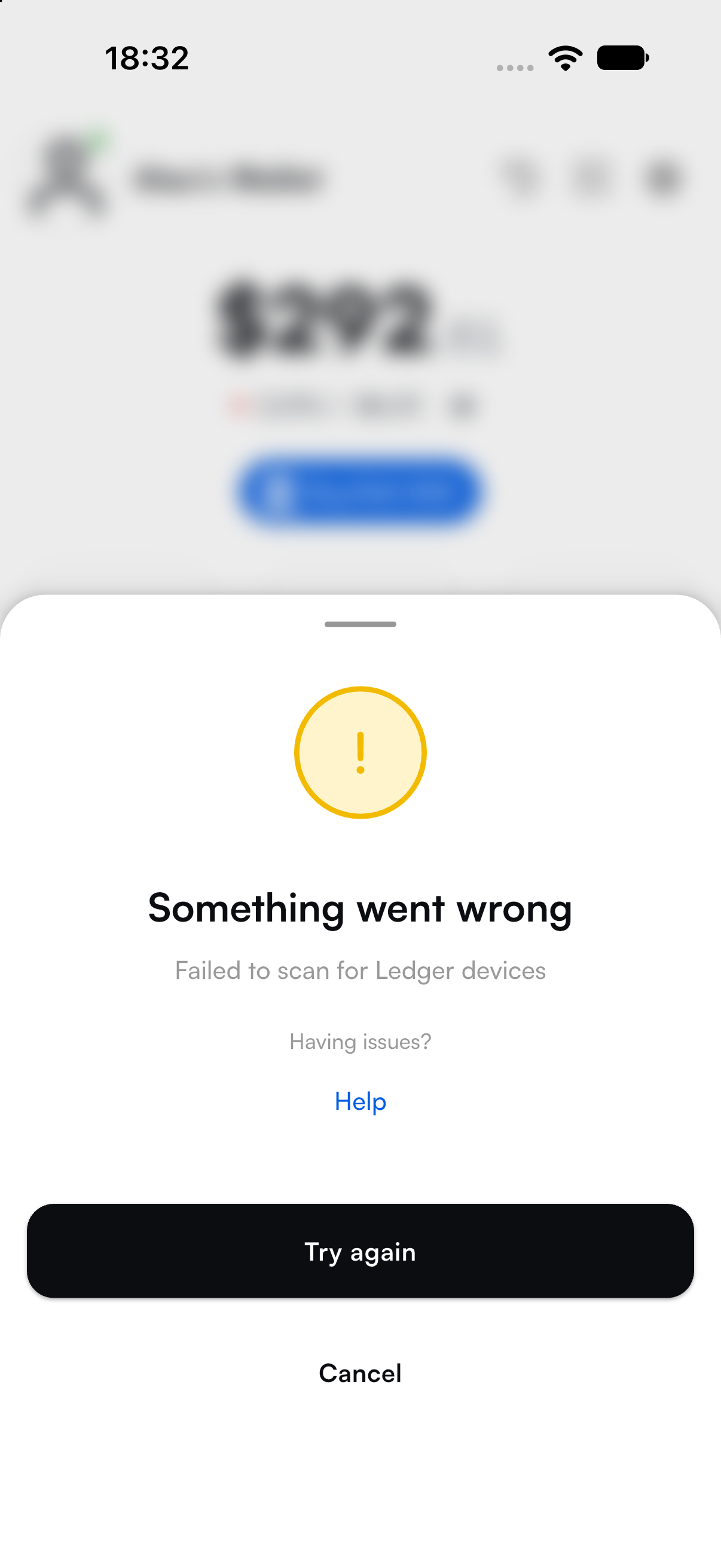
| **Something went wrong**: Failed to scan for Ledger devices | VESPR couldn't search for devices. Turn on Bluetooth (or connect the USB cable), check that VESPR may use Bluetooth, then tap **Try again**. |
| **Ledger Device Locked** | Unlock your Ledger with its PIN and tap **Try again**. |
| **Open the Cardano app on your Ledger** | The Ledger is on its dashboard or in another app. Open the Cardano app and tap **Try again**. |
| **Connection Lost**, or **Something went wrong**: We failed to complete the connection | Make sure the Ledger is unlocked on the Cardano app, reconnect it (replug the cable, or move it closer for Bluetooth), then tap **Try again**. |
| **Ledger Update Required** | Your Cardano app is too old for this operation. Update it in Ledger Wallet (the **Help** link on that screen opens Ledger's instructions), then try again. |
| **Ledger Device Mismatch** | The Ledger you connected holds a different wallet from the one selected in VESPR. Connect the Ledger you used to add this wallet. |
| **Operation Not Supported**: This transaction type is not supported for signing with Ledger. | VESPR can't sign this transaction with a Ledger. |
| **Rejected** | You declined on the Ledger. Start again and approve on the device if you want to go ahead. |
| Bluetooth permission required to perform operation | Allow Bluetooth for VESPR when your phone asks. |
| Bluetooth permission needs to be approved from phone settings | You declined earlier. Allow Bluetooth for VESPR (on Android, **Nearby devices**) in your phone's settings. |
VESPR couldn't search for devices. Check Bluetooth and tap Try again.
### In the browser extension
* **Bluetooth is not available in this browser.** You're using Brave with Web Bluetooth off. Enable `brave://flags/#brave-web-bluetooth-api` and restart Brave, or connect with USB.
* **Bluetooth signing is not available in the Pop Up.** VESPR is open as a toolbar Pop Up, which can't sign over Bluetooth. Connect with USB, or use VESPR in Chrome or Brave.
* **0 Ledger devices detected, with a Connect Ledger button (Pop Up only).** The browser hasn't given VESPR USB access to your Ledger yet, or you removed it in the browser's site settings. Click **Connect Ledger** to pair it in the VESPR window. This closes the Pop Up, so open VESPR again and start the action again.
* **Your Ledger isn't in the browser's device list.** Unlock it and open the Cardano app. Close Ledger Wallet and any other app that might be using the Ledger, then try again.
* **Bluetooth doesn't find the Ledger on a Mac.** Check that your browser may use Bluetooth in **System Settings** → **Privacy & Security** → **Bluetooth**.