> For the complete documentation index, see [llms.txt](https://docs.vespr.xyz/vespr/llms.txt). Markdown versions of documentation pages are available by appending `.md` to page URLs; this page is available as [Markdown](https://docs.vespr.xyz/vespr/user-guide/getting-started/connect-a-hardware-wallet.md).
# Connect a Hardware Wallet
Use a Ledger or Keystone hardware wallet with VESPR on iOS, Android and the browser extension. Your keys stay on the device and you approve every signature on it.
VESPR supports **Ledger** and **Keystone** hardware wallets on **iOS**, **Android** and the **browser extension**. The private keys stay on your hardware wallet: VESPR only receives the account's public key, so it can show your balance and prepare transactions, and you approve every signature on the device itself.
{% hint style="danger" %}
**Never type your hardware wallet's recovery phrase into VESPR, or into any other app or website.** Connecting a hardware wallet never asks for it. If you enter it in **Restore wallet** or **Use recovery phrase**, VESPR creates an ordinary software wallet from it, and the keys are no longer protected by your device.
{% endhint %}
## Supported devices
| Device | iOS | Android | Browser extension |
| ------------ | ----------------------- | ----------------------- | -------------------------- |
| **Ledger** | Bluetooth | Bluetooth or USB | USB or Bluetooth |
| **Keystone** | QR codes (phone camera) | QR codes (phone camera) | QR codes (computer webcam) |
| **Trezor** | Not supported | Not supported | Not supported |
* **Ledger** connects over a cable or Bluetooth and needs the Cardano app open on the device. iPhones can only reach a Ledger over Bluetooth, so on iOS you need a Ledger with Bluetooth (Nano X, Stax or Flex). See [Ledger](/vespr/user-guide/getting-started/connect-a-hardware-wallet/ledger.md) for the full guide.
* **Keystone** never connects by cable or Bluetooth. VESPR and the Keystone exchange QR codes with their cameras. See [Keystone](/vespr/user-guide/getting-started/connect-a-hardware-wallet/keystone-mobile-only-supported.md) for the full guide.
* **Trezor** devices are not supported. See [Trezor](/vespr/user-guide/getting-started/connect-a-hardware-wallet/trezor.md).
## Where to start
You can connect a hardware wallet when you first open VESPR, or add one next to the wallets you already have.
{% tabs %}
{% tab title="First time in VESPR" %}
On the welcome screen, tap **Connect hardware wallet**. If you haven't accepted the Terms and Privacy Policy yet, VESPR asks you to accept them first.
Tap Connect hardware wallet.
{% endtab %}
{% tab title="Adding to existing wallets" %}
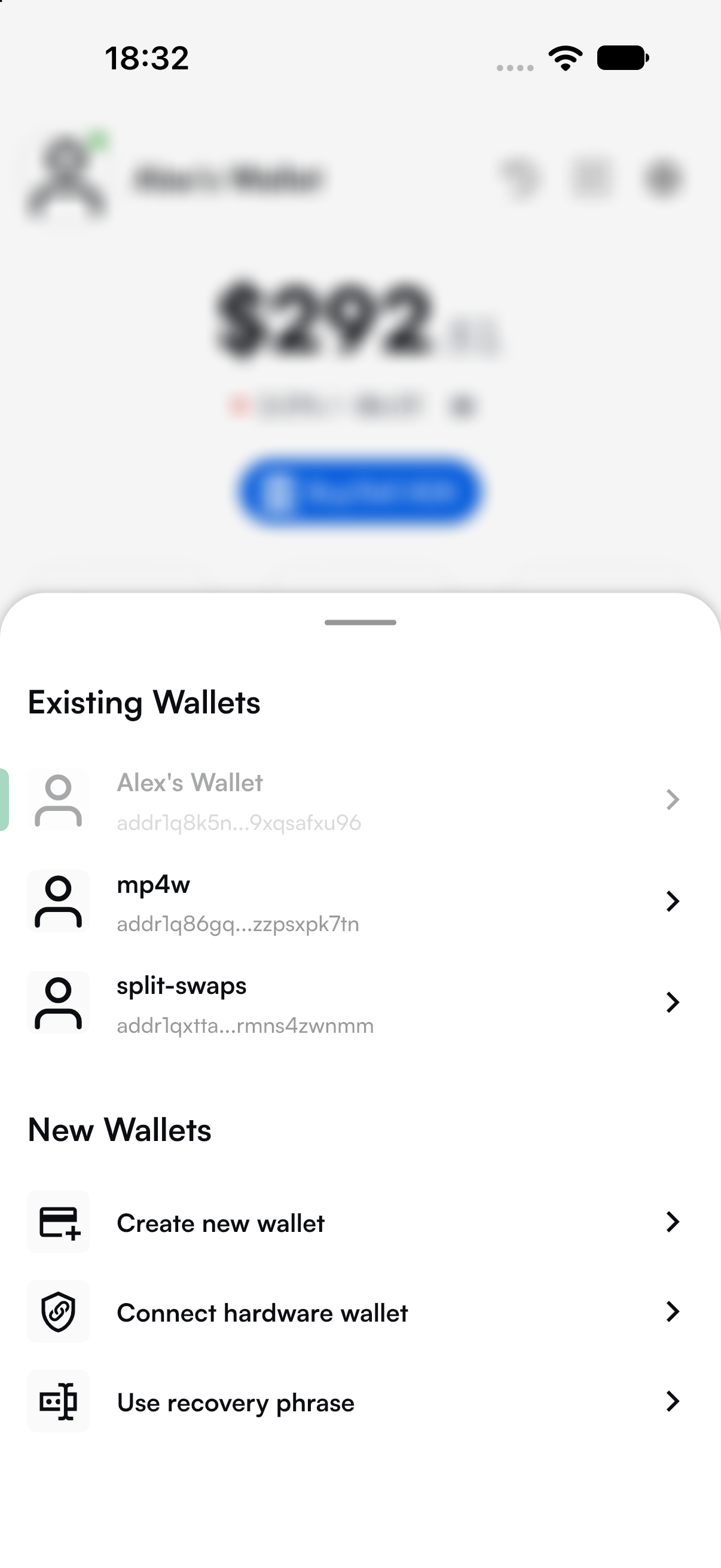
Tap your wallet's picture at the top left of the home screen (or go to **Settings** → **Change Account**). Under **New Wallets**, tap **Connect hardware wallet**.
Under New Wallets, tap Connect hardware wallet.
{% endtab %}
{% endtabs %}
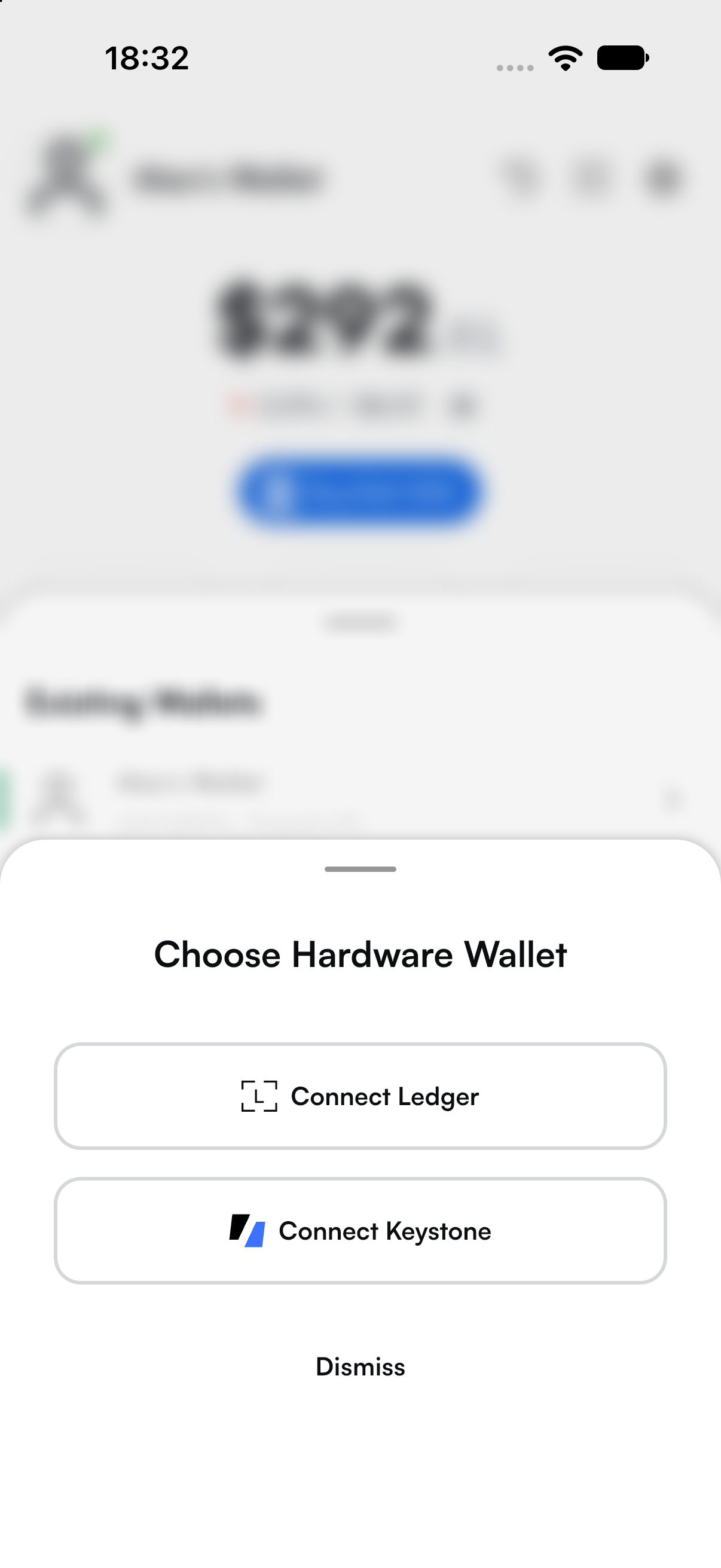
On iOS and Android, VESPR then asks you to choose **Connect Ledger** or **Connect Keystone**.
Choose your hardware wallet.
### In the browser extension
The browser asks for permission before a website or extension can use USB, Bluetooth or the camera, and it can only show those prompts in a normal window. So in the extension, **Connect hardware wallet** opens a small, separate **VESPR window**, and the extension shows **Continue in the VESPR window** until you finish there. You choose Ledger or Keystone in that window. When the wallet is added, the window closes and VESPR restarts with your new wallet selected.
Signing also uses a separate window when needed. Sends you start from VESPR open the VESPR window to sign, and dApp requests open in their own VESPR window, where you review and sign them.
{% hint style="warning" %}
**Use Chrome or Brave on your computer.** VESPR opens in the browser's side panel there. In browsers where VESPR opens as a small **Pop Up** from the toolbar instead (for example Arc), signing from the Pop Up is limited:
* **Ledger:** USB only, and only with a Ledger you already connected over USB in the VESPR window. Bluetooth signing is not available in the Pop Up.
* **Keystone:** signing is not available, because the Pop Up can't use the camera.
{% endhint %}
## Guides
{% content-ref url="/pages/M6w5KD16FsDRlE9hRQ5i" %}
[Ledger](/vespr/user-guide/getting-started/connect-a-hardware-wallet/ledger.md)
{% endcontent-ref %}
{% content-ref url="/pages/pJwkgXozLhOWoBJXbU7p" %}
[Keystone](/vespr/user-guide/getting-started/connect-a-hardware-wallet/keystone-mobile-only-supported.md)
{% endcontent-ref %}